In this post, I will share how I customized my WordPress website. I changed colors, added a background image, used widgets set up AMP for mobile speed, and made my site look better on phones and computers.
Widgets I Used and Why
My theme includes different widgets that can help my website. Here are five widgets and what they do:
- Search: Lets visitors search for posts or pages on my site. I used this to help people find content quickly.
- Recent Posts: Shows a list of my latest blog posts. I used this so visitors can see what’s new.
- Categories: Displays a list of post categories. I added this so people can browse by topic.
- Text: Lets me add any text or message anywhere (like a welcome message or contact info).
- Image: Allows me to show a picture, such as my logo or a featured image.
I used the Search, Recent Posts, and Categories widgets because they make my site easier to use. I placed them in my footer to help visitors find things easily. Text and Image widgets are also available and can be used for a welcome message or showing a fruit photo.
Other Customizations I Made
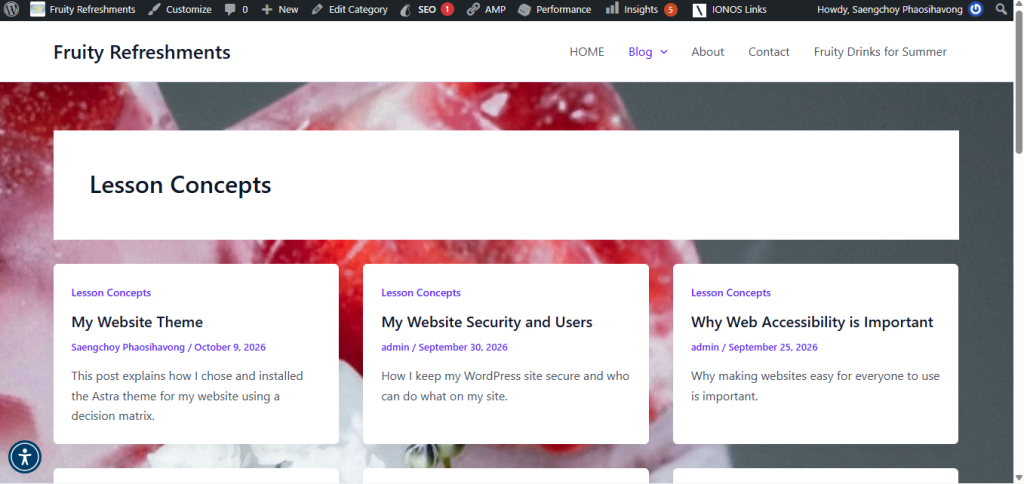
I changed the background image on my website to make it look more interesting and match my site’s topic.
I changed the Global Palette to Viola, which updated my site’s accent and link colors to match the new style.
I also changed some color to match my style. I added a small site icon so my website shows a picture in the browser tabs. I set up the AMP plugin to make my site faster on phones. I checked how my website looks on desktop, tablet, and mobile. I also tried a bit of extra code (CSS) to see how it would change the design.
Why I Would Schedule Design Changes
Scheduling design changes can be helpful for my website. For example, I could change colors or images for holidays, special sales, or events. It lets me plan updates ahead of time so my site always looks fresh, and I don’t have to rush to make changes at the last minute.